
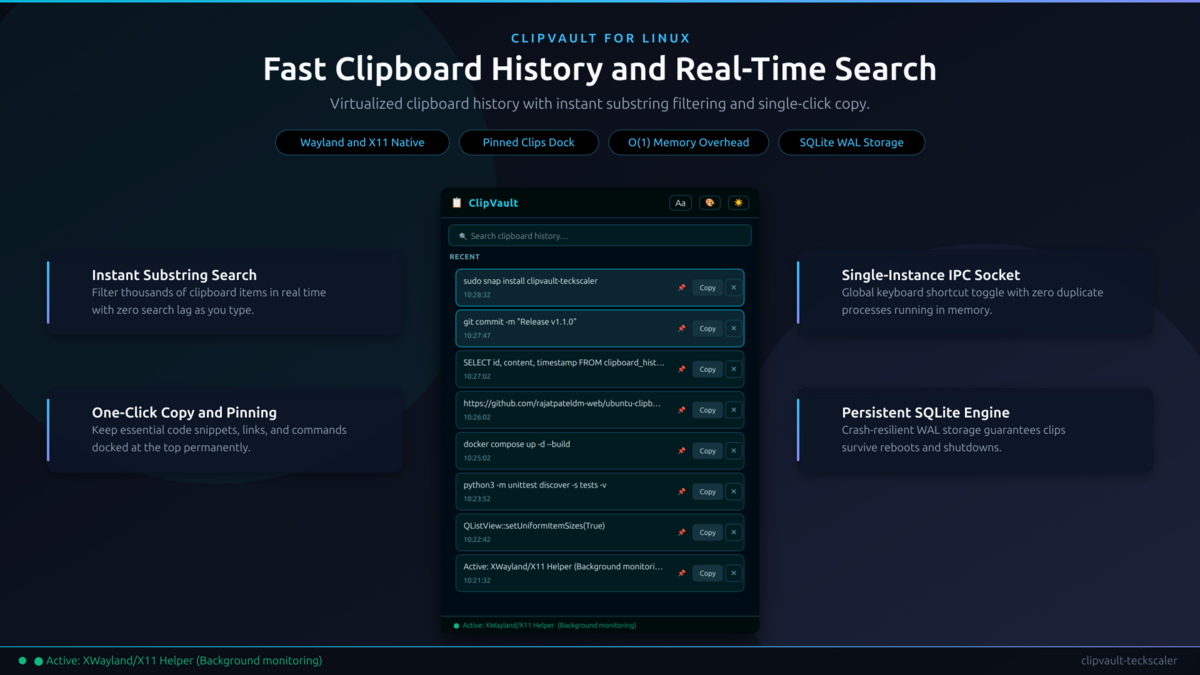

Executive Summary
- Production Release: ClipVault 1.2.0 is now live on the Canonical Snap Store for Ubuntu, GNOME Wayland, and X11 desktops under the open-source MIT license.
- Bulk History Cleanup: A new cleanup dialog purges unpinned clips across four time presets (Older than 24 Hours, 7 Days, 30 Days, or All Unpinned) while keeping pinned entries permanently protected.
- In-Window Quick Copy: Keystroke shortcuts (Ctrl+1 through Ctrl+9 and Enter) immediately copy visible items to the system clipboard and dismiss the window in one action.
- Visual Shortcut Badges: Cards display explicit shortcut badges (^1 through ^9) directly on the top nine items so users never need to count list rows manually.
- Interface Polish: Custom radio button styling adds distinct circular indicators and accent highlights in both Dark and Light modes, paired with a clean centered version footer.
- Verified Reliability: Automated test suite expanded from 68 to 109 passing unit and integration tests covering database pruning, dialog safety, and shortcut guards.
Table of Contents
- Fast Desktop Productivity for Wayland and X11
- Bulk History Cleanup with Permanent Pin Protection
- In-Window Quick Copy Shortcuts and Visual Badges
- Theme-Aware Controls and Minimalist Footer
- Technical Factsheet: ClipVault Evolution from 1.0.0 to 1.2.0
- Test Suite Expansion to 109 Passing Tests
- Core Privacy Architecture Recap
- How to Upgrade and Install ClipVault 1.2.0
- Frequently Asked Questions
Fast Desktop Productivity for Wayland and X11
Linux software engineers and system administrators rely heavily on clipboard managers to store commands, configuration snippets, and SQL queries. However, traditional clipboard tools frequently encounter instability under modern Wayland compositors. As examined in our benchmark guide on the best Linux clipboard managers for Wayland, background poll loops often cause the GNOME dock to blink, trigger high CPU usage, or compromise security by retaining plain-text passwords indefinitely.
The open-source ClipVault project addresses these desktop bottlenecks directly. Developed in Python and PyQt6 under strict Canonical Snap confinement, ClipVault delivers stable text history capture, pre-read password manager filtering, and constant O(1) memory rendering. For detailed architectural insights, review our teardown on building a Wayland clipboard manager without dock flicker.
The release of ClipVault 1.2.0 marks a major productivity milestone. This update introduces an age-based bulk history cleanup tool and in-window Quick Copy keyboard shortcuts, giving users precise control over database storage while speeding up daily terminal workflows.
Bulk History Cleanup with Permanent Pin Protection
During long programming sessions, unpinned clipboard entries accumulate rapidly. While ClipVault automatically caps unpinned storage to maintain instant search performance, developers often need to prune temporary working history without losing essential pinned snippets.
ClipVault 1.2.0 introduces a dedicated Cleanup Dialog accessible directly from the main window header. The tool provides four distinct time-based presets:
- Older than 24 Hours: Clears short-lived copies from the previous workday while keeping current active tasks intact.
- Older than 7 Days: Removes weekly scratchpad items while preserving recent work.
- Older than 30 Days: Performs monthly database maintenance to eliminate historical clutter.
- All Unpinned Entries: Completely resets your unpinned clipboard history in a single operation.
Safety was the primary engineering priority for this feature:
- Permanent Pin Protection: Pinned clipboard entries are strictly preserved across every cleanup threshold. Pinned items are never deleted during bulk cleanup operations.
- Live Count Preview: The dialog calculates and displays the exact number of matching unpinned clips before the user confirms the action.
- Accidental Click Defense: The confirmation modal defaults its keyboard focus to the Cancel button. The background scrim click dismissal is explicitly disabled, ensuring stray clicks outside the window cannot trigger accidental data loss.
- Database Reliability: Behind the scenes, the SQLite WAL database service handles counting and deletion through dedicated methods, updating the memory model and item counts immediately without freezing the interface.
In-Window Quick Copy Shortcuts and Visual Badges
Speed is essential when recalling frequently used commands. Previously, retrieving an entry required navigating the list with arrow keys or clicking an entry with the mouse.
ClipVault 1.2.0 introduces direct keyboard shortcuts for instant item recall:
- Instant Keystroke Copying: Pressing
Ctrl+1throughCtrl+9immediately copies that numbered item to the system clipboard and dismisses the window. PressingEntercopies the currently selected item and dismisses the window. - Visual Shortcut Badges: To eliminate guesswork, the top nine visible cards in the list display a clean shortcut badge (
^1through^9) right next to their metadata. Users do not need to count rows to know which shortcut corresponds to which item. - Full Keypad Support: Shortcuts recognize both top-row number keys and numeric keypad inputs with the Ctrl modifier.
- Modal Safety Guards: Quick copy shortcuts automatically pause whenever a modal dialog, such as Color Scheme, Font Options, or Cleanup, is active. This prevents background copy events while configuring application settings.
Combined with the system-wide Super+V hotkey, developers can now recall any of their top nine clips in under one second entirely from the keyboard.
Theme-Aware Controls and Minimalist Footer
ClipVault 1.2.0 refines visual presentation across its interface:
- Custom Radio Button Indicators: The selection controls inside the Cleanup Dialog and settings dialogs now feature polished theme-aware styling. Circular indicators and accent highlights render crisply with high contrast in both Dark and Light modes.
- Minimalist Footer Layout: The application footer was updated to display the current version centered cleanly. Redundant static status labels were removed, giving the main list maximum vertical space.
These visual refinements build on the ten developer color schemes introduced in version 1.1.0, including popular palettes like Dracula, Nord, One Dark, Tokyo Night, Gruvbox, and Monokai.
Technical Factsheet: ClipVault Evolution from 1.0.0 to 1.2.0
The table below summarizes the technical specifications and architectural milestones across ClipVault release versions:
| Feature Dimension | ClipVault v1.0.0 | ClipVault v1.1.0 | ClipVault v1.2.0 |
|---|---|---|---|
| History Management | Automatic 100 unpinned item cap | Automatic cap with 0600 permissions | Age-based bulk cleanup dialog (24h, 7d, 30d, all) |
| Keyboard Copying | Arrow keys + Enter navigation | Arrow keys + Enter navigation | Ctrl+1 to Ctrl+9 instant copy with visible card badges |
| Themes and Styling | Default Dark and Light modes | 10 IDE palettes (20 colorways) + font options | Polished radio indicators + centered version footer |
| Password Vault Filtering | 8 MIME secret hints pre-filtered | 8 MIME secret hints pre-filtered | 8 MIME secret hints pre-filtered |
| Automated Test Suite | 40 unit and integration tests | 68 unit and integration tests | 109 unit and integration tests |
Test Suite Expansion to 109 Passing Tests
Reliability is non-negotiable for system-level desktop utilities. ClipVault enforces strict testing standards across its storage and UI components before any release tag is published.
With the release of version 1.2.0, the automated test suite expanded from 68 tests to 109 unit and integration tests. The test coverage validates:
- Database age-based counting and deletion across all four time presets.
- Model item pruning, row removal signals, and proxy filter synchronization.
- Cleanup dialog state management, live count recalculation, and confirmation flows.
- Modal overlay event blocking and scrim click ignore behaviors.
- Quick copy keyboard shortcut event handling, boundary conditions, and dialog guards.
- Delegate shortcut badge layout, bounding rects, and theme rendering.
Every test runs cleanly under the standard Python unittest runner, ensuring zero regressions on Ubuntu desktops.
Core Privacy Architecture Recap
For users discovering ClipVault with version 1.2.0, the application maintains its foundational privacy and security architecture:
- Pre-Read Secret Filtering: ClipVault checks clipboard MIME types before reading text payloads into memory. It inspects eight distinct vault flags, including
x-kde-passwordManagerHint,application/x-password-manager-hint, andapplication/x-copyq-secret. Passwords from KeePassXC, 1Password, Bitwarden, and KWallet are discarded before writing to disk. Read our side-by-side analysis in ClipVault vs CopyQ on Wayland to explore how automated filtering protects local sessions. - Flicker-Free Wayland Capture: A resident background thread prioritizes
xclipandxselbefore falling back towl-paste. By unsetting desktop activation tokens before polling, ClipVault prevents the GNOME dock from flashing or spawning ghost icons. - Local Restricted Storage: ClipVault stores text in a local SQLite database running in WAL mode with strict
0600file permissions. Your clipboard history never leaves your machine, and no analytics or telemetry services are included. - Constant Memory Footprint: The virtualized QListView presentation layer renders thousands of history items with constant O(1) memory overhead, keeping the interface fluid during rapid search filtering.
How to Upgrade and Install ClipVault 1.2.0
ClipVault is distributed primarily through the Canonical Snap Store, providing automatic updates and strict application confinement on Ubuntu, Debian, Fedora, and Arch Linux.
Update an Existing Installation
If you already have ClipVault installed via Snap, update to version 1.2.0 by running:
sudo snap refresh clipvault-teckscalerNew Installation via Snap
To install ClipVault for the first time on any Snap-enabled Linux distribution, run:
sudo snap install clipvault-teckscalerConfigure the Global Super+V Hotkey
To bind ClipVault to the standard Super+V shortcut on Ubuntu GNOME:
- Open Settings and navigate to Keyboard > Keyboard Shortcuts > View and Customize Shortcuts.
- Scroll to the bottom and select Custom Shortcuts.
- Click the + button to add a new shortcut.
- Set the Name to
ClipVault Toggle. - Set the Command to
clipvault-teckscaler.toggle. - Press your preferred key combination, such as Super+V, and click Add.
Now, pressing Super+V will instantly toggle the ClipVault window, and pressing Ctrl+1 through Ctrl+9 will copy your desired clip and return you to your work.
Source Code and Packaging Roadmap
ClipVault is open source under the permissive MIT license. You can inspect the source code, review the complete commit history, or download release tarballs directly from the official repository:
- GitHub Release v1.2.0: github.com/rajatpateldm-web/ubuntu-clipboard-manager/releases/tag/v1.2.0
- TeckScaler Product Hub: teckscaler.com/clipvault-clipboard-manager
Flatpak, standalone AppImage, and native Debian packaging configurations are currently progressing through Phase 2 distribution scaffolding.
Related Tech Intelligence: Review our engineering deep dive on How We Built a Wayland Clipboard Manager in Python and PyQt6 Without GNOME Flicker for complete socket IPC and delegate implementation details.
Frequently Asked Questions
What is new in ClipVault version 1.2.0?
ClipVault 1.2.0 adds an age-based Bulk History Cleanup tool, in-window Quick Copy keyboard shortcuts (Ctrl+1 through Ctrl+9 and Enter), visible badge indicators on cards, polished theme controls, a centered version footer, and an expanded test suite of 109 automated tests.
Does the Bulk History Cleanup tool delete pinned clipboard items?
No. Pinned clipboard entries are permanently protected across every cleanup preset. Even when selecting the All Unpinned Entries option, your pinned clips remain safely stored in the database.
How do the Quick Copy keyboard shortcuts work?
When the ClipVault window is open, pressing Ctrl+1 through Ctrl+9 instantly copies the corresponding visible item to your system clipboard and closes the window. Badges on the top nine cards show you the exact number key for each item.
Does ClipVault store passwords copied from password managers?
No. ClipVault inspects clipboard metadata before reading copied text into memory. If KeePassXC, Bitwarden, 1Password, or KWallet flags the clipboard item as a secret, ClipVault discards it immediately without saving it to disk.
What Linux desktop environments are supported?
ClipVault is built for GNOME on Ubuntu Wayland and X11 sessions. It also works across other desktop environments, including KDE Plasma, XFCE, and MATE, on any Linux distribution supporting Snap packages.

